
How it works
- Take a photo of the receipt, or choose one you already have, and pick the account you paid from. A JPEG, PNG or WebP image of up to 10 MB works.
- The receipt is read in the background.
- Review the items it found, each with a suggested category from your own list, and change any amount or category.
- Save, and the receipt becomes one booking with its items as categorised expense lines.
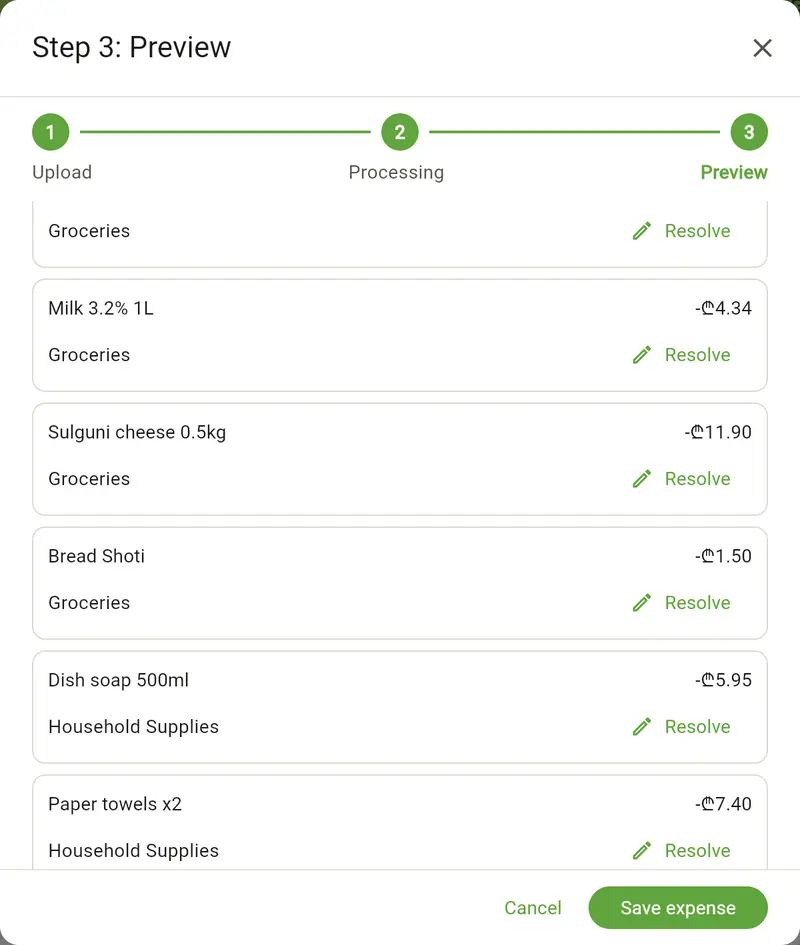
One receipt, several categories
A supermarket receipt often mixes vegetables, dairy and cleaning products. Each item is read with its own amount and category, so your budget shows where the money actually went and not one lump under "Shopping".
Categories from your own list
Items are sorted into the categories you already use, down to the most specific one that fits. The store is taken into account: tomatoes on a supermarket receipt are groceries, and on a pizzeria's bill they are eating out.
What happens to the photo
Location, camera and other data stored in the image are removed before the photo is read. Once the receipt has been read, the photo itself is deleted, and only what was read from it is kept.
Taking a photo that reads well
The whole receipt in frame, flat, in good light and in focus reads best. The receipt photo guide shows good and bad examples.
Which plan includes it
Every plan includes a monthly allowance:
- Free: 3 receipt scans a month
- Starter: 7 receipt scans a month
- Pro (Coming Soon): Unlimited receipt scans
- Max (Coming Soon): Unlimited receipt scans
The allowance renews each month on the day you signed up.